
 Download the Mac beta
Your archive, with an assistant.
Read-only archive access for agents, so the footage you already own becomes easier to work with.
Automate your offload. Stay in the edit.
CineSense is a Mac app for filmmakers. Copy camera cards, check every local copy, file the shooting day, and send it to DaVinci Resolve Studio. Add an off-site copy in your own cloud storage when you want one.
Apple Silicon · macOS 13 or later
Signed by Bryzr Studio. Notarised by Apple.
A little less admin. A little more making.
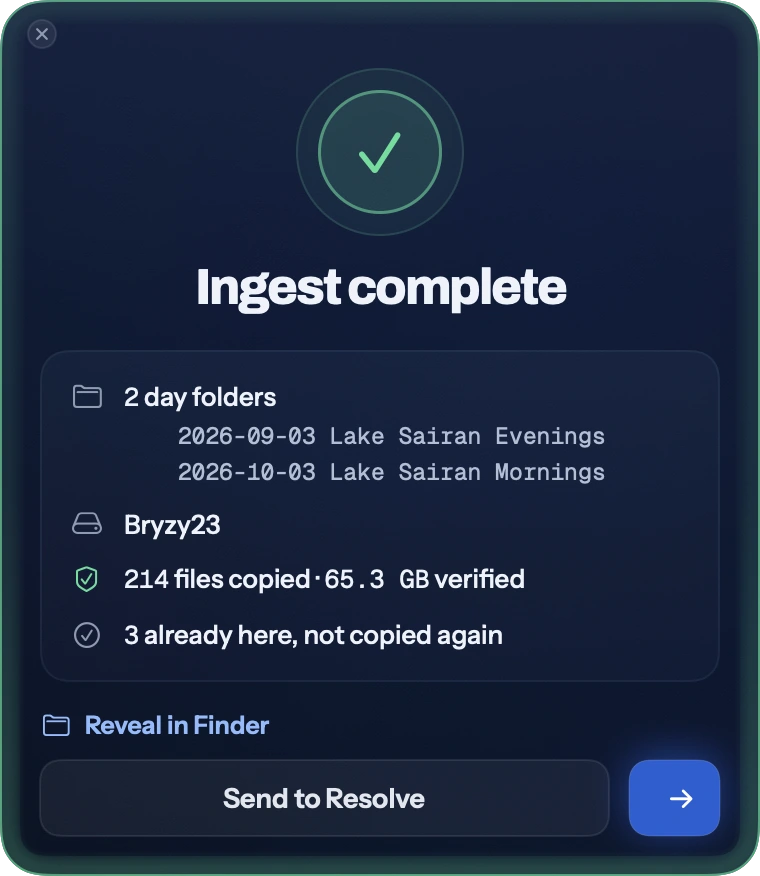
Recognise the card. Copy to your drives. Read it back.
Organise by shoot day. Hand the day to your edit.
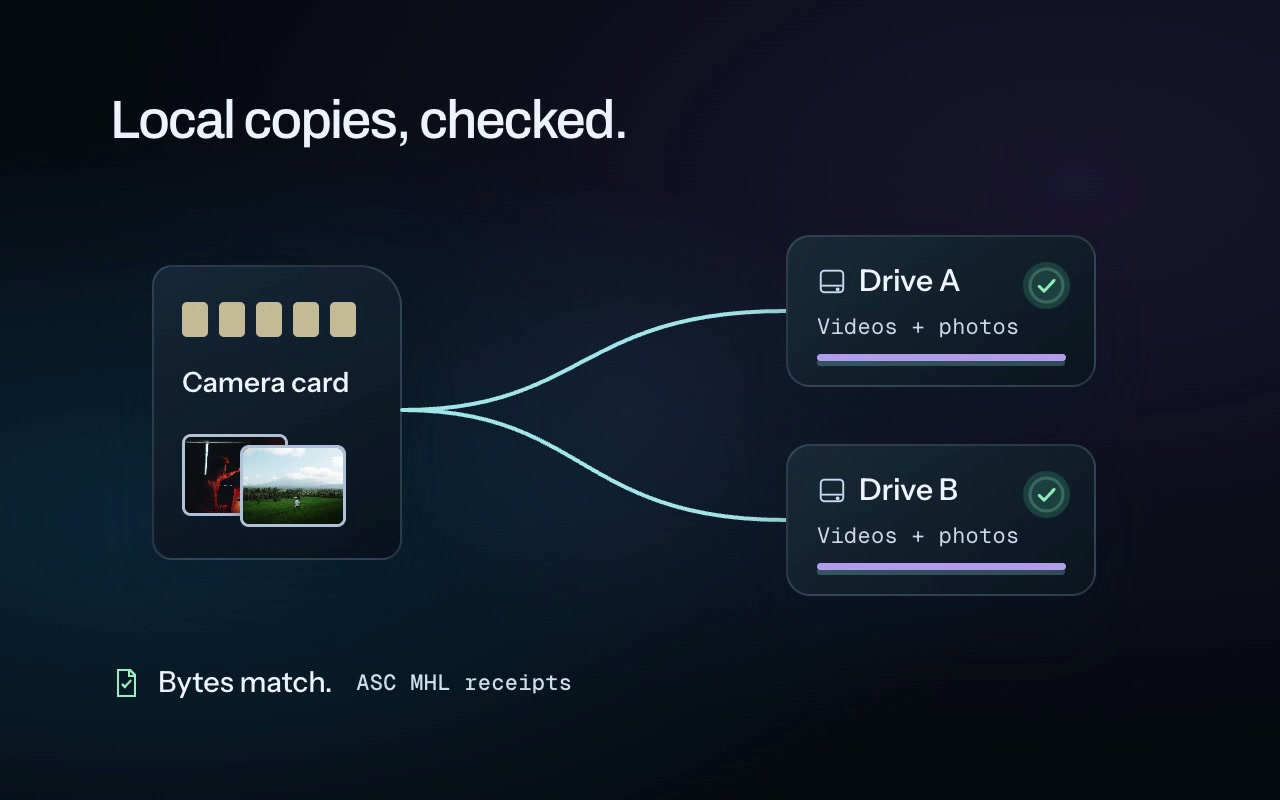
Videos and photos move from a camera card to two local drives. The copies are read back, then marked checked. This result describes the copied files, not a whole-card format verdict.
01 / Automatic card offload
Your recognised cards, your chosen drives, your shoot-day folders. CineSense copies videos and photos to two destinations in one pass, then reads each local copy back to check the bytes.
Name the day’s first ingest to arm auto-ingest. Eligible registered cards then start after a countdown. When a card needs a decision, CineSense asks.
02 / From the card to your timeline
Send the shooting day into the Resolve Studio project you have open. Videos arrive in camera bins, with camera colours, day keywords, and the stringout or Stacked timeline you choose. Start with the edit, not the organising.
Requires DaVinci Resolve Studio, an open project, and External scripting set to Local.
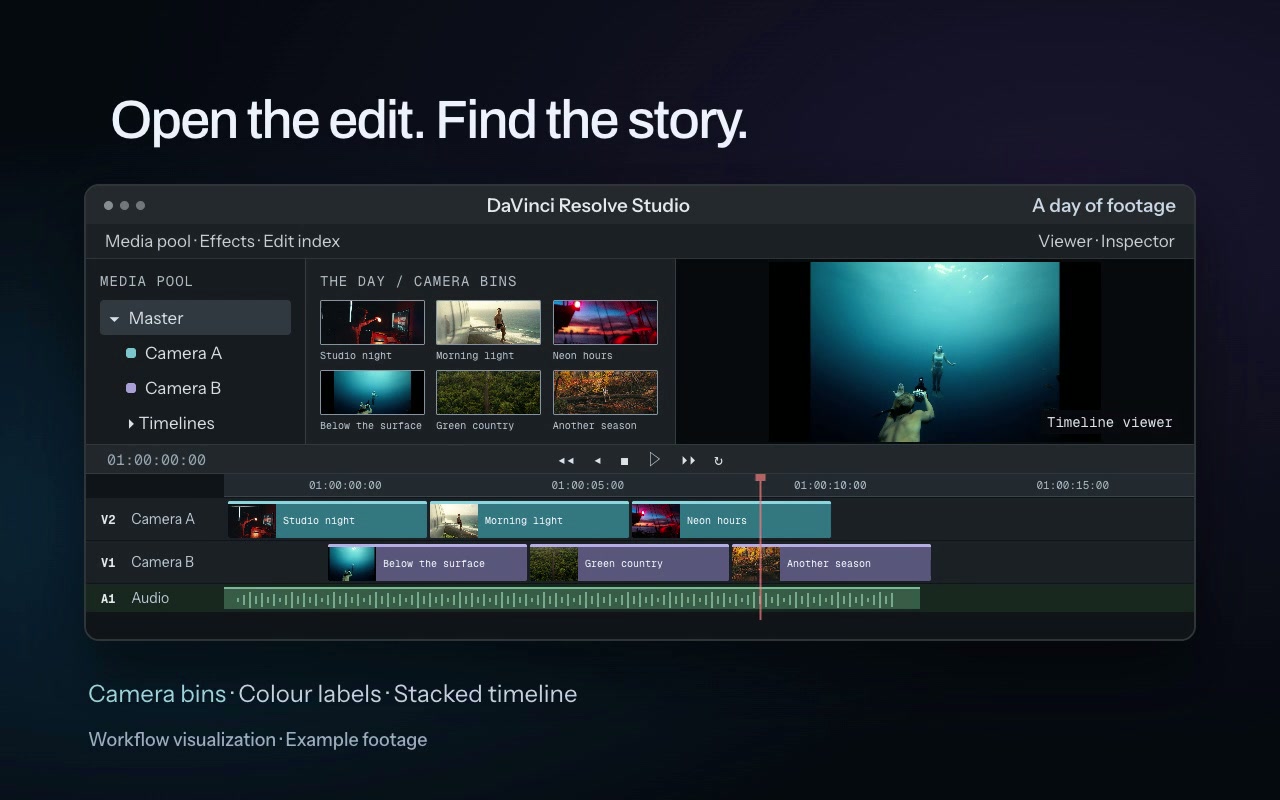
An organised shooting day becomes camera bins and a timeline in an open DaVinci Resolve Studio project.
03 / CineTransfer
A simple interface for a whole drive, a folder, or a hand-picked selection. CineTransfer uses CineSense’s copy-and-check engine to make the next local copy and verify what actually arrived.
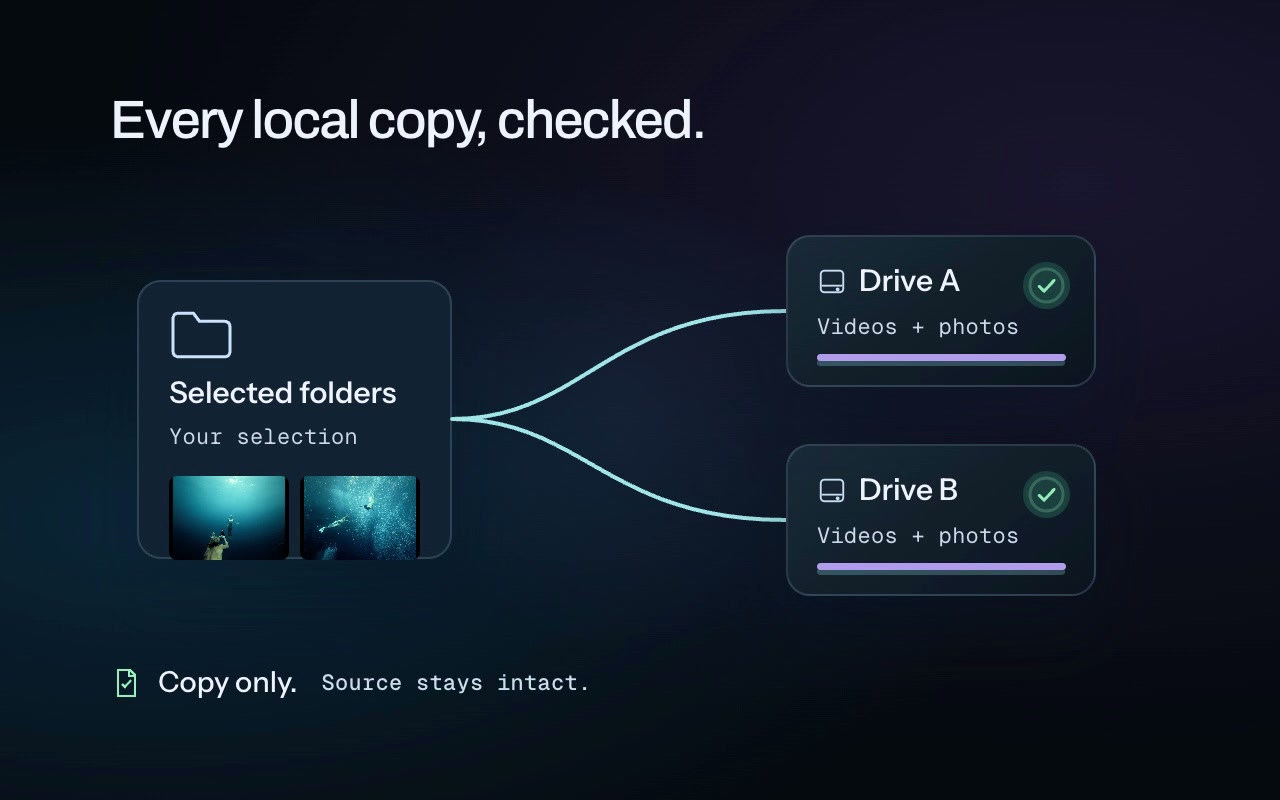
CineTransfer copies footage from one drive to another and reads the destination back before marking the local copy checked.
Example on fast SSDs; speed depends on your drives.
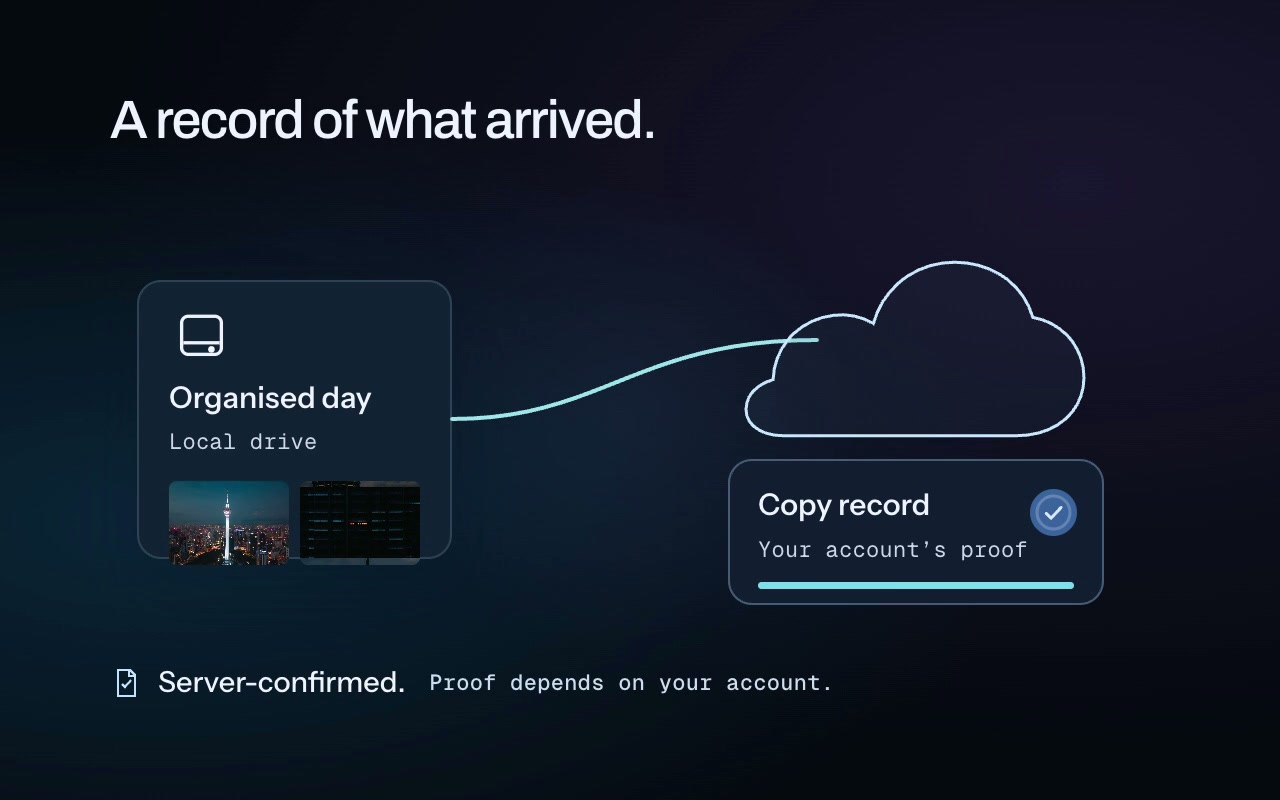
CloudSense sends an organised day to a connected cloud account in the background. A receipt distinguishes read back by the server from server-confirmed copies.
04 / CloudSense
An automatic cloud archive for the days you want to keep. Connect your chosen service and let organised shoot folders upload in the background—client work, irreplaceable footage, or a second home for your archive. Follow the upload from the menu bar.
 Google Drive™Backblaze B2 / S3
Each file gets an honest proof label. A cloud copy never makes a card safe to format. Upload speed depends on your internet’s upload connection to the service, often much slower than a local drive speed test.
Read back by the server: the server hashes its copy and the checksum is compared.
Server-confirmed: the service’s checksum confirms the copy. Large B2/S3 files can use “every part checked by the service”.
Handed over: sizes only, with that weaker proof stated clearly.
Storage Box, Dropbox, and Google Drive have been tested with real accounts. Backblaze B2 and S3 are built and have not yet been tested live.
Your optional off-site copy
Google Drive, on your terms.From CineSense v2.134.1, CloudSense uses Google’s drive.file permission: CineSense can see and manage only the files it uploads itself—never anything else in your Drive. It uploads the shoot folders you choose plus a small copy receipt, and reads back each file’s MD5 checksum from Google to confirm it arrived intact.
Files go directly from your Mac to Google. Bryzr Studio never receives your files or Google tokens through this connection. Your sign-in permission stays in your Mac’s Keychain.
If you linked Drive with an earlier version, revoke CineSense’s old permission in your Google Account, then link Drive again using v2.134.1 or later. Updating the app alone does not narrow an existing permission.
The proof after the copy
CineSense reads the local destination drive back and compares the bytes. Keep the check with the footage, long after the bar disappears.
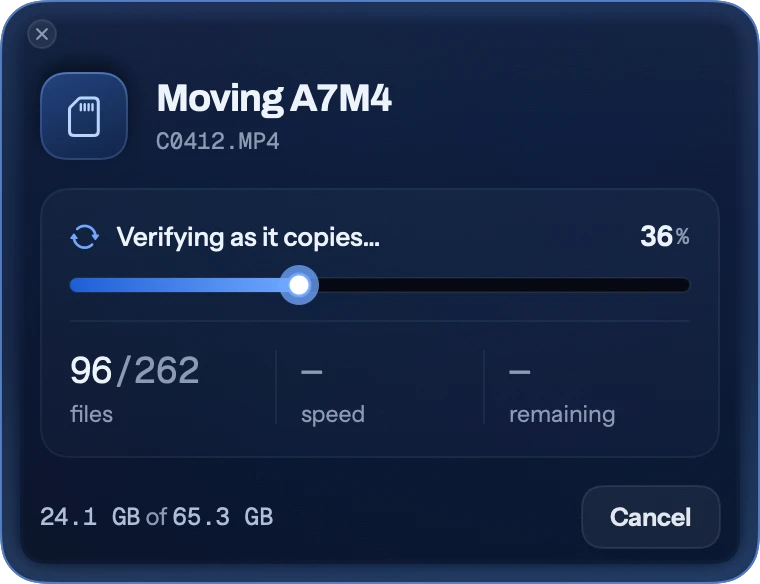
Videos and photos arrive on your local drives.
Compare the destination bytes with the source.
An ASC MHL record travels with your footage.
Selected shoots get their own checks. A whole-card format verdict requires the rest of the card to be covered too.
Copy is the default. Your camera card stays intact.
Check what the destination holds, beyond the Mac’s cached copy.
ASC MHL receipts and PDF reports go with the day. Transfer Logs stay on your Mac.
A checked job covers the files it copied. The whole-card verdict also considers the footage left behind. Before formatting, open the day folder, play some videos, inspect some photos, and check the file count.
When you want the details
The loops above illustrate the actions.
These are the native panels behind them.
01 / Bring the day home
Choose what to take. CineSense copies your videos and photos, reads the destination drive back, and checks the bytes before calling the local copy verified.
Copy is selected by default. Borrowed cards are always copied and never cleared.
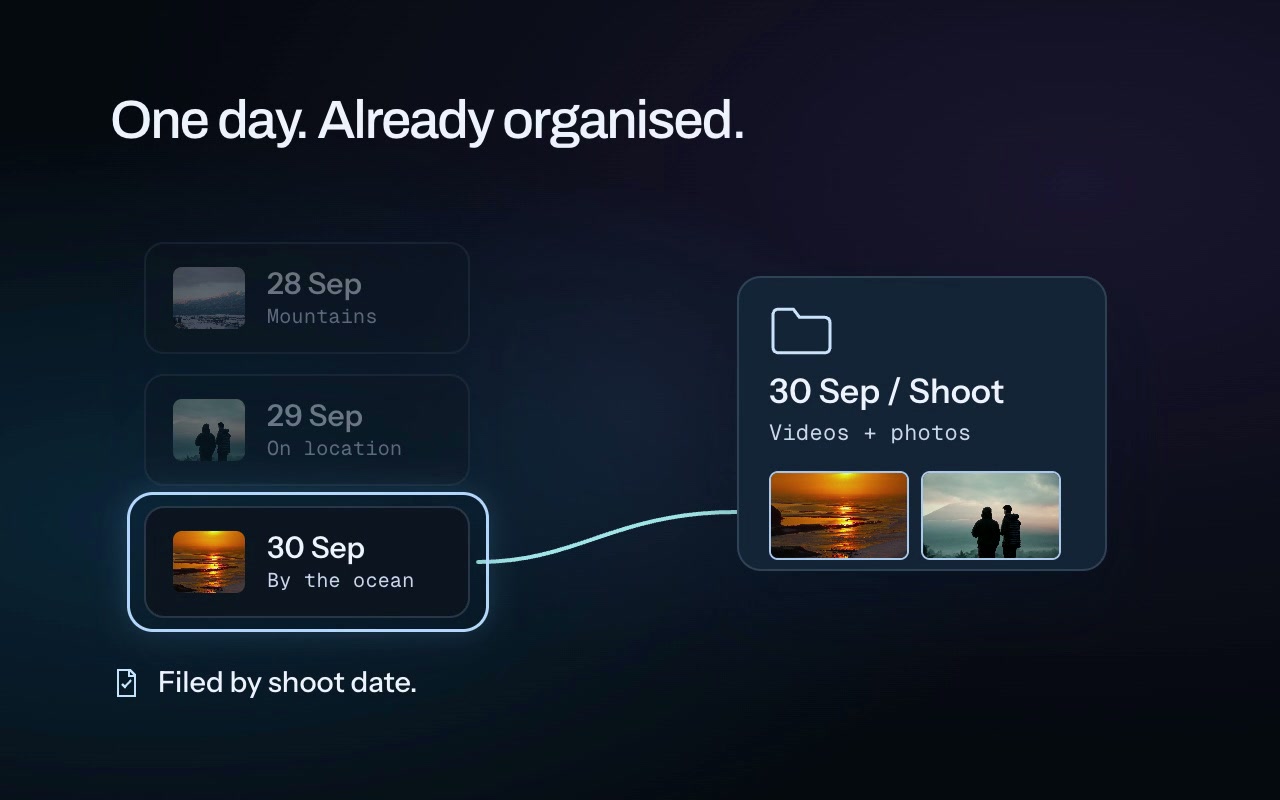
A latest-shoot selection keeps a continuous session together while earlier shoots stay on the card. Choose Latest day or Everything when you need more.
Take the latest session, the latest shooting day, or everything. A continuous night shoot stays together across midnight.
Earlier footage stays on the card. A checked shoot does not make uncopied footage safe to format.
Offscreen native captures with example data, assembled into guided sequences rather than recorded live transfers.
Describe the shot, a moment of dialogue, or words you saw in the frame. CineVision, our on-device AI engine, combines visual understanding with captions, on-screen text, and optional speech indexing to help you search your archive.
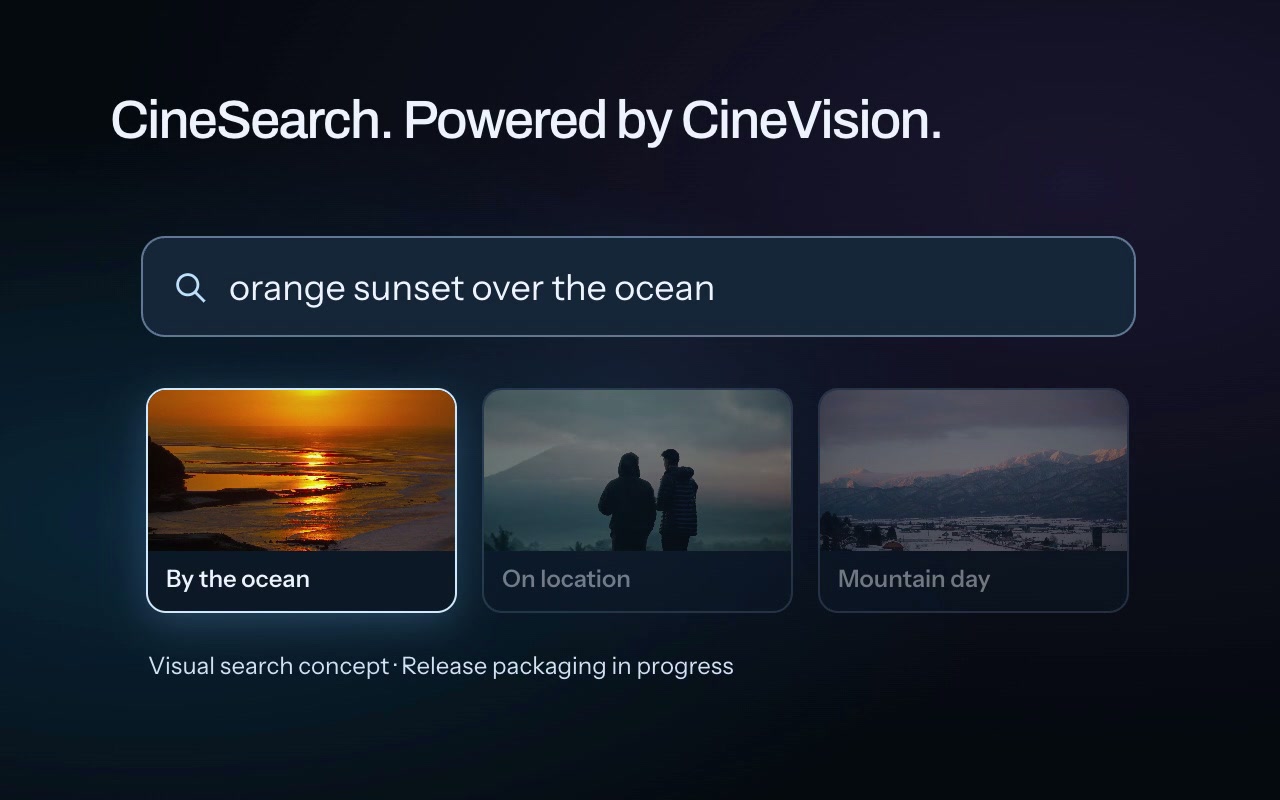
A workflow visualization of CineSearch, powered by CineVision: search indexed visuals, on-screen words, and optional speech. The optional engine is not bundled with the current public beta; release packaging is in progress.
On the horizon
Ideas we’re exploring. No release dates yet.
Read-only archive access for agents, so the footage you already own becomes easier to work with.
Learning from your finished work to explore pacing, visual patterns, and a more useful starting point for an edit.
Before your first card
This is a beta. Keep your own backup habits, and send your feedback to the person making it.
beta@bryzrstudio.comThe current beta is for Apple Silicon Macs running macOS 13 or later. Download the zip from the public release page, drag CineSense into Applications, and open it. The app is signed by Bryzr Studio and notarised by Apple.
Copy is selected by default and leaves the card intact. Borrowed cards are always copied and never cleared. Move is an optional setting for your own cards. For this beta, keep Copy selected, open the day folder, play some videos, inspect some photos, and check the file count before formatting in your camera.
It is a result for the whole card, checked against actual copies on mounted local drives. Taking only the latest shoot does not make older uncopied footage safe. Extra files and camera proxies can also need attention. A cloud copy never makes a card safe to format. You remain the final check before formatting.
CloudSense supports Storage Box/SFTP, Dropbox, Google Drive, Backblaze B2, and S3 accounts. Proof depends on the account: read back by the server, server-confirmed, or handed over with sizes only. Large B2/S3 uploads can be labelled every part checked by the service. Storage Box, Dropbox, and Google Drive have been tested with real accounts; Backblaze B2 and S3 are built and have not yet been tested live.
CineSense’s Google sign-in is published and its branding is verified. From v2.134.1, new Drive connections request only drive.file. If you linked an earlier version, revoke the old permission in your Google Account and link again with v2.134.1 or later. Contact support@bryzrstudio.com if you need help. An own-client setup uses your own Google project’s access settings.
Yes. Use DaVinci Resolve Studio with a project open. In Preferences → System → General, set External scripting using to Local. CineSense links your existing videos into camera bins and can create stringouts and Stacked timelines; it does not move them into a new library.
CineSearch is working in development with the optional CineVision engine. Its public release packaging is in progress, and it is not bundled with this public Mac beta. Visual, text, and optional speech indexing run on your Mac.
Local copies and their checks run on your Mac. CloudSense sends footage only to cloud accounts you connect. Update checks contact the public update service, and notification webhooks send messages only when configured. Copy Diagnostics shows what it will gather; you choose whether to email that folder. It does not contain footage, passwords, or keys.
CineSense checks for updates daily and offers them in its menu. Installation waits while a card, transfer, upload, indexing run, or Resolve send is in progress. If something goes wrong, keep the footage and card as they are, use Copy Diagnostics, and email bugs@bryzrstudio.com with what happened, your camera/card, and your Mac and app versions. For other help, email support@bryzrstudio.com.
For the footage you came home with
Apple Silicon · macOS 13 or later · Latest beta